
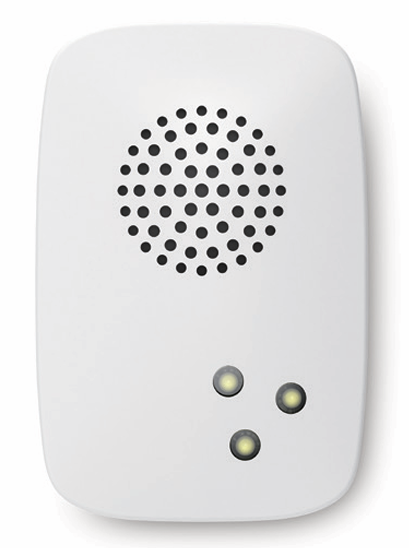
To see whether Siren 8 is known to be compatible with your Z-Wave system or not, please reference our Z-Wave gateway comparison listing. The technical specifications of Siren 8 can be viewed at that link.
Get to Know your Siren 8.
Your Siren 8 comes packaged with a number of accessories that will help with its installation and operation.
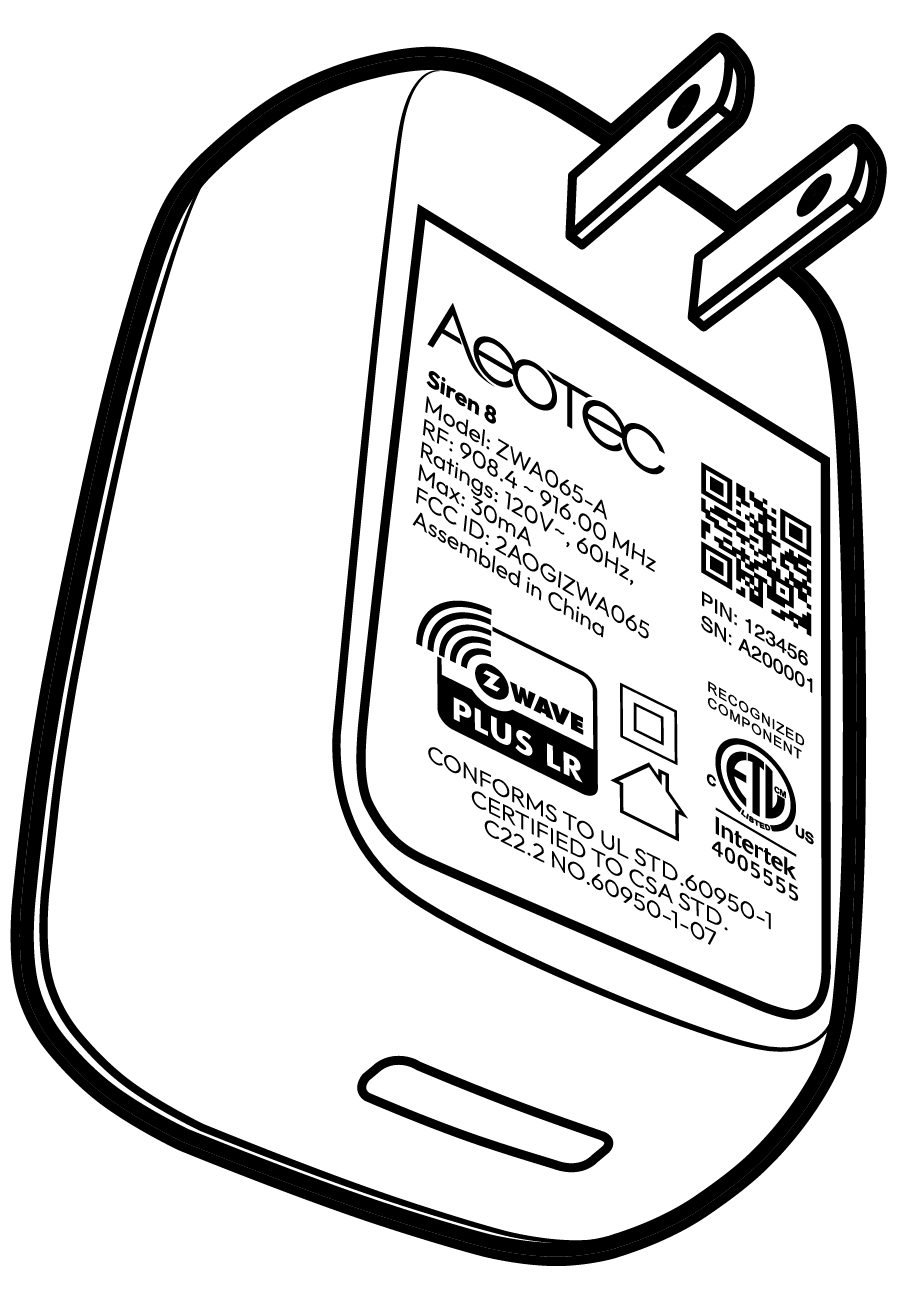
Package Contents:
Siren 8
Button Functions.
| Action button press | LED Activity | Function/description of the button press |
|---|---|---|
| Single Click Action Button | Safety LED behavior stops (turns off). | Stops any active alarm tone and disables the safety LEDs if the siren is currently in alarm state. |
| Single Click Action Button | Indicator Light will extinguish immediately. | If the device is currently in Classic Inclusion Learn Mode, clicking the Action Button once will exit this mode. |
| Double Click Action Button | Flashes fast during pairing/removal attempt. | Initiates Z-Wave Inclusion/Exclusion mode. |
| Press and Hold Action Button for [1, 5s) | 3 LEDs flash individually when the button is pressed, and become off when released. | NA |
| Press and Hold Action Button for [5, 8s) | 3 LEDs flash together when the button is pressed. During test mode, LEDs blink fast. | Activates a test mode for the siren and LEDs. |
| Press and Hold Action Button for [8, 12s) | Indicator Light will speed up flashing when the button is pressed, and turn off when released. | NA |
| Press and Hold Action Button for 12+ seconds | Indicator Light will become breathing light. | Performs a factory reset on the device. |
Important safety information.
Please read this and other device guides carefully. Failure to follow the recommendations set forth by Aeotec Limited may be dangerous or cause a violation of the law. The manufacturer, importer, distributor, and/or reseller will not be held responsible for any loss or damage resulting from not following any instructions in this guide or in other materials.
Siren 8 is intended for indoor use in dry locations only. Do not use in damp, moist, and/or wet locations. Operate within the recommended environmental specifications:
- Operating Temperature: 0°C to 45°C (32°F to 113°F)
- Relative Humidity: 20% to 80%
The Siren 8 has a built-in, rechargeable 430mAh lithium battery. Keep the product away from open flames and extreme heat. Avoid direct sunlight or heat exposure.
Contains small parts; keep away from children.
Quick Start.
Power up Siren 8.
To get started with your Siren 8, you'll need to power it on. The Siren 8 can be powered by a DC adapter or its internal backup battery.
The Siren 8 will charge while it is plugged in, but will only last 2 hours while unplugged on a full charge.
Steps.
- Power On: Plug the other end of the DC adapter into a wall outlet. The Siren 8 will power on, and its LED indicator should light up.
- Pairing: Once powered on, the Siren 8 is ready to be paired with your Z-Wave network. You can put the Siren 8 into pairing mode by pressing its Action Button 2x times within 1.5 seconds.
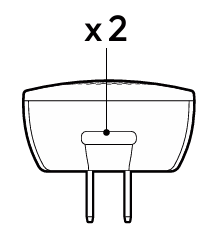
Key Placement Considerations.
1. Indoor Use Only: The Siren 8 is designed exclusively for indoor use. It should be placed in a climate-controlled space to protect it from outdoor elements like rain, direct sunlight, and extreme temperatures.
- Operating Temperature: 0°C to 45°C (32°F to 113°F)
- Relative Humidity: 20% to 80%
2. Central Location for Audible Alerts: With a maximum alarm volume of 104dB, the siren should be placed in a central location, such as a main hallway or living area. This ensures the sound can be clearly heard throughout the entire house during an alert.
3. Access to a Power Outlet: The device must be plugged into a standard outlet to function and to keep its internal backup battery charged. This battery allows the siren to continue operating for up to 2 hours during a power outage.
4. Strategic Z-Wave Network Placement: The Siren 8 also functions as a Z-Wave repeater, which helps extend the range and improve the reliability of your Z-Wave mesh network.
- Optimal Range: For best performance, place the Siren 8 within 30 meters (about 98 feet) of your Z-Wave hub or another Z-Wave device.
- Network Extension: Consider placing it in an area where your Z-Wave signal is weak to help boost the signal to other devices.
Connect Siren 8 to a hub.
This section will go over brief steps to connecting Siren 8, for further details on connecting this product to your hub, click on the hub that you have to access more detailed steps.
Aeotec Smart Home Hub / SmartThings:
- Open SmartThings app.
- Tap + (at the top right corner).
- Tap Add (next to Partner devices)
- Select "Aeotec" in the catalog
- Tap Add without QR Code -> "Siren"
- Now tap the Action Button 2x times in 1.5 seconds on your Siren 8.
- Select "Secure Setup" when prompted
- Scan the QR code, or choose to enter the 5-digit DSK code.
- Open up Home Assistant
- Click on "Configuration" at the bottom left of the page.
- Click on "Integrations".
- Click on "Configure".
- Click on "ADD NODE".
- Click on "START INCLUSION"
- Tap the Siren 8 Action button 2x times within 1.5 seconds to pair it.
SmartStart QR code scanning: If your Z-Wave gateway supports SmartStart, you can scan the QR code on the Siren 8 to automatically pair the sensor if your Z-Wave hub supports this.
For most other hubs:
- Set your Z-Wave hub to connect new Z-Wave devices.
- Tap the Siren 8 action button 2x times within 1.5 seconds.
- If prompted, scan the QR code or enter the 5-digit DSK code on the back of the Siren 8.
Basic Functions.
Z-Wave Exclusion.
Excluding a device is the clean and proper way to remove a Z-Wave device from your network. This process involves your Z-Wave hub sending a removal command to the device, which ensures that your hub understands that the device is no longer a part of the network. This prevents "ghost" devices from remaining in your hub's device list, which can cause issues with your Z-Wave network.
A factory reset, on the other hand, should only be used when your Z-Wave hub is no longer operable. A factory reset will restore the device to its default settings but will not properly remove the device from your hub.
Steps:
- Set your Z-Wave gateway to "remove device" or "exclusion" mode.
- Double-click the Action Button on the Siren 8.
- The LED on the Siren 8 will flash to indicate that it has entered exclusion mode.
- If the exclusion was successful, the Siren 8's LED will begin breathing.
- If the exclusion fails, the LED will turn off.
Manual Hard Factory Reset.
A factory reset will erase all custom configurations and remove the Siren 8 from any Z-Wave network it was paired with, restoring it to its default settings.
Warning: This method should only be used when your primary Z-Wave controller is missing, inoperable, or otherwise unavailable.
Because this procedure does not communicate with the controller, the controller will not know the device has been reset. This can leave a "ghost" or "phantom" device in your controller's interface that may be difficult to remove later.
When to use a Hard Factory Reset:
- Your primary Z-Wave controller is no longer functional or has been lost.
- You have already tried Z-Wave Exclusion, and it has failed.
- You are troubleshooting the device and have been instructed to perform a full reset.
How to perform a Hard Factory Reset:
- Ensure your Siren 8 is powered on.
- Press and hold the Action Button for at least 12 seconds.
- The Indicator Light will flash to confirm the reset process has begun.
- Release the button. The Indicator Light will then start to show a 'breathing light' pattern to confirm the factory reset was successful.
Product Usage.
When you first pair an Aeotec Siren 8 to a Z-Wave Controller, it is primarily recognized as a Sound Switch. Its default function is to act as a simple, loud, audible alarm that can be turned on or off by the controller. It's designed to be integrated into security or safety automation scenes, such as sounding an alarm when a door is opened unexpectedly or a smoke detector is triggered.
1. UI Information and Device Reporting
Upon successful pairing, the Siren 8 reports critical information to the Z-Wave controller, which then builds the user interface (UI) to control it.
- Device Identification: The Siren 8 identifies itself using the Z-Wave Plus Info and Manufacturer Specific command classes. This tells your controller that it is an "Aeotec Siren 8 (ZWA065)", an "Always On Slave" device (meaning it's mains-powered and can act as a repeater), and specifically a "Sound Switch."
- Main UI Control: Most Z-Wave controllers will display a primary, simple on/off switch for the Siren 8. This UI element is based on the Switch Binary Command Class. By default, turning this switch "ON" will play the default sound at the default volume. Turning it "OFF" will stop the sound.
- Advanced UI Controls: A more capable Z-Wave controller may expose the Sound Switch Command Class controls directly in the UI. This would provide more granular control, such as:
- A dropdown menu or buttons to select from 5 different tones.
- A slider to control the volume (1-100%).
- Status Reporting (Lifeline): The Siren 8 uses Association Group 1 (Lifeline) to send important status updates to the controller. You might see these as notifications or status changes in your UI:
- Power Management Notifications: It will report when AC power is lost and when it's restored, a critical feature for knowing if the device is running on its internal battery backup.
- Playback State: It reports when a tone starts and stops playing.
2. How to Control the Siren 8
You have a few ways to control the Siren 8 from your Z-Wave controller:
- Simple On/Off (Switch Binary): The most basic way is to use the on/off switch presented in the controller's UI. Toggling it on plays the siren's default sound (Parameter 2) at the default volume (Parameter 3).
- Specific Sound Control (Sound Switch): If your controller's UI supports it, you can send specific commands to play any of the 5 available tones at any volume, overriding the defaults for that specific action. This is ideal for creating different alerts for different events (e.g., a soft chime for a door opening vs. a loud alarm for a break-in).
- Automation Scenes: The most common use case is to include the Siren 8 in an automation. For example:
- IF
Door/Window Sensor is Opened (while system is armed) - THEN
Turn Siren 8 ON.
- IF
- Physical Button: By default, a single click on the Siren 8's physical Action Button will stop any currently playing alarm.
3. Potential Important Parameter Settings
For a Z-Wave controller to configure the Siren 8, it must support the Configuration Command Class. This is the specific part of the Z-Wave protocol that allows a controller to send commands to change a device's parameters. While this is a standard command class, some basic or older controllers may not have implemented it, or may only support a limited set of parameters.
To customize the Siren 8's behavior, you'll want to adjust its configuration parameters. Here are the most important ones for a new user:
Parameter 1: Alarm Duration
- Sets how long the siren will sound when turned on.
- Default:
180seconds (3 minutes) - Use: You might want to shorten this for simple notifications or lengthen it for a security event.
Parameter 2: Default Tone ID (can be used if Sound Switch commands are not supported)
- Selects which of the 5 sounds will play when you use the simple "on" command.
- Default:
1 - Use: Listen to the 5 available tones and set your preferred one as the default.
Parameter 3: Default Volume (can be used if Sound Switch commands are not supported)
- Sets the volume (0-100) for the default tone.
- Default:
100(Maximum volume) - Use: Adjust the default volume to be appropriate for its location or purpose (e.g., a less intense volume for a notification chime).
Parameter 5: Enable Sound on AC Outage
- Determines if the siren should sound an alarm when it loses AC power.
- Default:
0(Disabled) - Use: This is a very important security feature. It's recommended to enable this (set to 1) to be alerted if a burglar tries to disable the siren by cutting its power.
Parameter 4: Enable Button Click to Stop
- Allows or disallows stopping the alarm and/or LED indicator with a click of the physical button.
- Default:
3(Both alarm and indicator stop are enabled) - Use: You can disable this to prevent an intruder from easily silencing the siren.
By understanding these reporting features, controls, and parameters, you can effectively integrate the Siren 8 into your Z-Wave network for a wide range of audible alerts and security functions.
Association Groups.
Group Association is a specific function in Z-Wave that allows you to tell Siren 8 who it can speak to. Some devices may only have 1 group association meant for the gateway, or multiple group associations that can be used for specific events. This type of function isn't used too often, but when it is available, you may be able to use it to directly communicate to Z-Wave devices instead of controlling a scene within a gateway which can have unforeseen delays.
Some gateways have the ability to set Group Associations to devices that have these special events and functions. Typically this is used to allow your gateway to update the status of Siren 8 instantly.
By default, your primary gateway should have been associated with Siren 8 automatically during the pairing of your Siren. For any case you have a Secondary Z-Wave Controller, you'll need to associate it to your Siren 8 in order for your secondary controller to update its status.
| Group Number | Description | Parameter # reference | Description |
| 1 | Lifeline | 80 | Lifeline Reporting Assigned to the Z-Wave Controller/Hub to receive standard reports. • Device Reset Locally: Sent on factory reset. • Sound Switch Reports: Sent when tone, volume, or duration changes. • Notification Report: Sent when power supply changes (AC/Battery). • Indicator Report: Sent when indication changes. • Switch Binary / Basic Report: Sent when Play Tone changes (Enabled by Parameter 80). |
| 2 | Retransmit | 80 | Control / Retransmission Used to control or sync other Z-Wave devices by retransmitting commands received by the Siren. • Switch Binary Set: Issued when Siren receives a Binary Switch Set command (Enabled by Parameter 80). • Basic Set: Issued when Siren receives a Basic Set command (Enabled by Parameter 80). • Sound Switch Tone Play Set: Issued when Siren receives this command, manually stops a tone, or enters/exits test mode. |
Parameter Settings.
Parameter settings, also known as configuration parameters, are variables in a Z-Wave device that allow you to customize its behavior. To change these settings, you need a Z-Wave controller or gateway that supports the Configuration Command Class. This class allows the controller to send specific commands to the device to update these parameter values.
Below is a table of the parameter settings for the Siren 8:
| Parameter | Description | Size | Default | Value Range / Available Settings |
|---|---|---|---|---|
| 1 | Set the alarm duration in seconds | 2 Bytes | 180 | 10-600 seconds |
| 2 | Set default tone id | 1 Byte | 1 | 1-5 |
| 3 | Set default volume | 1 Byte | 100 | 0-100 |
| 4 | Enable button click to stop function | 1 Byte | 3 | 0: Disable stopping both alarm and indicator by button click. 1: Enable stopping alarm only by button click (Bit 0 enabled). 2: Enable stopping indicator only by button click (Bit 1 enabled). 3: Enable stopping both alarm and indicator by button click. |
| 5 | Enable play sound when AC outage | 1 Byte | 0 | 0: Disable playing sound on AC outage. 1: Enable playing sound on AC outage. |
| 6 | Stop alarm when AC reconnect | 1 Byte | 0 | 0: Do not stop the alarm when AC power reconnects 1: Stop the alarm when AC power reconnects. |
| 7 | Delay of (AC outage) alarm cancelation | 2 Bytes | 0 | 0-300 seconds |
| 8 | Enable LED when siren alarm | 1 Byte | 1 | 0: Disable LED activity during siren alarm. 1: Enable LED activity during siren alarm. |
| 9 | Enable tone when Siren alarm | 1 Byte | 1 | 0: Disable the siren tone during siren alarm. 1: Enable the siren tone during siren alarm. |
| 10 | Set level of light pattern | 1 Byte | 1 | 1-99 |
| 11 | set led on together of light pattern | 1 Byte | 1 | 0: LEDs light up one by one. 1: LEDs light up together. |
| 12 | Set effect of light pattern | 4 Bytes | 0 | Sets an LED animation of your choosing to activate once Parameter 12 has been issued. 0x00000000 - 0xFFFFFFFF
|
| 13 | Switch Device Type | 1 Bytes | 0 | Changes the device type of the Siren 8, in order for the controller to see any changes, the Siren 8 must be excluded and the included again after the parameter has been configured. This parameter setting is persistent and will save the configured value even after a exclusion. 0: Sets device type to "Binary Switch DT" 1: Sets device type to "Sound Switch DT" |
| 80 | Enable Association group report | 1 Byte | 1 | 0: Disable Switch Binary Report and Basic Report for Group 1. Disable Switch Binary Set and Basic Set for Group 2. 1: Enable Switch Binary Report for Group 1. Enable Switch Binary Set for Group 2. 2: Enable Basic Report for Group 1. Enable Basic Set for Group 2. |
| 252 | lock configuration setting | 1 Byte | 0 | 0: Disable locking of configuration parameters (unlocked). 1: Enable locking of configuration parameters (locked). |
What Parameter 12 Does, in a Nutshell
Think of Parameter 12 as a secret code for creating your own custom light patterns on the Siren 8's LEDs. While other parameters might turn the light on or off, this one lets you define complex behaviors like a slow pulse, a rapid flash, or a light that stays on for a specific amount of time. It's an advanced setting, but it's quite powerful once you understand the basics.
The "Secret Code" Explained
The setting for Parameter 12 is a single, large number. However, it's easier to think of this number as being made of four smaller parts. Your Z-Wave hub might show you four separate boxes to fill in, or it might ask for the final calculated number.
Here are the four parts of the code:
Part 1: Effect Group (Byte 1) - This tells the siren what kind of light effect you want. You have three main choices:
- Timeout: The light turns on for a set amount of time and then turns off.
- Toggling (Blinking): The light blinks on and off.
- Multilevel (Pulsing/Fading): The light fades in and out.
Part 2, 3, and 4: Effect Details (Bytes 2, 3, and 4) - These parts define the specifics of the effect you chose in Part 1. The meaning of these parts changes depending on your choice.
If you chose "Toggling (Blinking)":
- Part 2: How many times you want it to blink (cycles).
- Part 3: How long the "On" part of the blink is (in tenths of a second).
- Part 4: How long the "Off" part of the blink is (in tenths of a second).
If you chose "Timeout":
- Part 2, 3, and 4 combine to set the total time the light should stay on (in tenths of a second).
How to Program It: A Simple Example
Let's say you want to create a custom alert that blinks the light 5 times, with each blink being quick.
- Go to your Z-Wave Hub's Interface: Open the settings for your Aeotec Siren 8.
- Find the Configuration/Parameters Section: Look for a menu item called "Device Configuration," "Parameters," or something similar.
- Locate Parameter 12: Find the entry for "Parameter 12" or "Set effect of light pattern."
- Enter the Code: This is where you'll input the four-part code. Your hub might have a single box or four boxes.
Let's figure out our code for the blinking alert:
- Part 1 (Effect Group): We want it to blink, so we choose the Toggling effect. The value for this is 2.
- Part 2 (Cycles): We want it to blink 5 times.
- Part 3 (On-Time): We want a quick blink, so let's make it on for half a second. The unit is 0.1 seconds, so we enter 5 (5 * 0.1s = 0.5s).
- Part 4 (Off-Time): Let's make the off-time the same, so we enter 5.
So, our four parts are [2, 5, 5, 5].
If your hub has four separate boxes for the parameter, you would enter 2, 5, 5, and 5 respectively.
If your hub only has one single box for the value, you will need to use an online "4-byte parameter calculator" or your hub's tool to convert [2, 5, 5, 5] into a single number (decimal), which is 33883141.
Don't worry about the math! The key is to understand that you are just telling the siren what effect to use and then providing the details for that effect. The best way to learn is to start with a simple blinking effect and experiment with changing the numbers to see what happens.
Example Settings for Parameter 12.
| Hex Value | Decimal Value | Title | Description |
|---|---|---|---|
0x0211FF00 | 34733824 | Fast Blink | The LED will blink on and off quickly (on for 0.1s, off for 0.1s) and continuously. Useful for urgent alerts. |
0x02AAFF00 | 44793600 | Slow Blink | The LED will blink on and off slowly (on for 1.0s, off for 1.0s) and continuously. Ideal for status notifications. |
0x0228FF00 | 36273920 | Pulse | The LED turns on for a short period (0.2s) and then off for a longer period (0.8s), repeating continuously. This creates a calm "heartbeat" or "breathing" effect. |
0x0219FF00 | 35258112 | Strobe | A quick flash (0.1s) followed by a longer pause (0.9s), repeating continuously. Good for getting attention without being as frantic as a fast blink. |
0x02220500 | 35783936 | Short Burst | The LED will blink at a moderate speed 5 times and then stop. This is perfect for confirming that a command has been received and executed. |
0x02550A00 | 39143680 | 10-Second Alert | The LED blinks at a steady pace (0.5s on, 0.5s off) for 10 cycles, then stops. Useful for temporary alerts that should not continue indefinitely. |
0x02F1FF00 | 50134784 | Long On, Short Off | The LED stays on for a long duration (1.5s) with a very short off-blink (0.1s). This is a highly visible pattern that indicates an ongoing status. |