
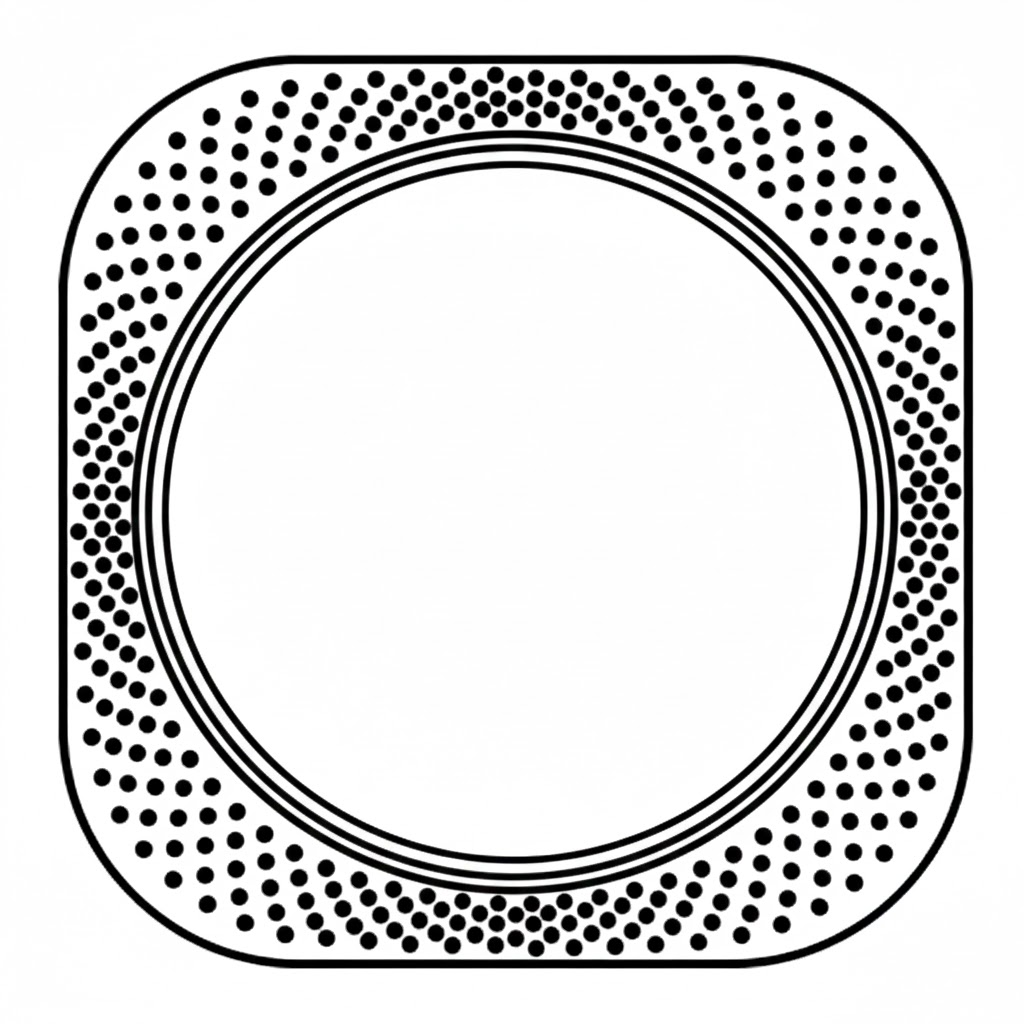
Aeotec MultiSensor 8 was developed to detect ambient values and movement and to transmit them with Z-Wave Plus. It is powered by Aeotec’s Gen8 technology. You can find out more about MultiSensor 8 by following that link.
To see whether MultiSensor 8 is known to be compatible with your Z-Wave system or not, please reference our Z-Wave gateway comparison listing. The technical specifications of MultiSensor 8 can be viewed at that link.
Get to Know your MultiSensor.
Your MultiSensor comes packaged with a number of accessories that will help with its installation and operation.
Package Contents:
1. MultiSensor 8
2. Battery Cover
3. SIM Needle
4. Right Angle USB-C to USB-
5. Double-Sided Tape
6. Screws (×2)
7. Back Arm Mount
8. Warranty Card
8. Quick start guide
Button Functions.
| Action button press | LED Status | Function |
| Initial Power (when factory reset) | 1. Flashing Red / Green 2. Green LED breathes 3 times 3. Solid Green LED for 1 second | 1. Self inspection function 2. Indicates MultiSensor 8 is outside of the network 3. Sends Inclusion request for SmartStart Learn mode. |
| Initial Power (when already paired) | 1. Flashing Red / Green 2. Solid Green for 1 second | 1. Self inspection function 2. Indicates MultiSensor 8 is in a Z-Wave network already. + Sends Wakeup Notification and remains awake for 15 seconds unless controller sends NO MORE INFORMATION command. + Sends all sensor data |
| 1x Tap (when factory reset) | 1. No LED 2. Green LED breathes 3 times | 1. Exit Classic Pair Mode If MultiSensor 8 is attempting to pair already while the button is tapped, pair mode will cancel and cause the LED to turn off. 2. Network Status If not in pair mode, the LED status will breathe its green LED to indicate it is not a part of any network. |
| 1x Tap (when already paired) | 1. No LED 2. Solid Green 1 second | 1.Exit Classic Pair Mode If MultiSensor 8 is attempting to exclude already while the button is tapped, exclusion mode will cancel and cause the LED to turn off. 2. Sends Wake up Report Sends a wake up report and remains awake for 15 seconds (will go to sleep right away if the controller sends NO MORE INFORMATION frame). |
| 2x Tap (when factory reset) | 1. Blinks Green for 30 seconds (or until added to network) 2. No LED | 1. Sends Node Info for Adding (Classic Pair Mode) 1.1. If successfully paired, Solid Green for 2 seconds before turning off LED 1.2. If failed, LED turns OFF immediately 2. Exit Classic Pair Mode |
| 2x Tap (when already paired) | 1. Blinks Green for 30 seconds (or until removed from network) 2. No LED | 1. Sends Node Info for Remove (Classic Remove) 1.1. If successful, Solid Green for 2 seconds, then breathes Green for 3 seconds. 1.2. If failed, LED immediately turns off. 2. Exit Exclusion/Remove Mode |
| Press and hold [0, 1 seconds) | No LED | N/A |
| Press and hold [1, 3 seconds) | Solid Green LED @ 10% | N/A |
| Press and hold [3, 5 seconds) | Solid Green LED @ 100% | Send all sensor data When released between 3-5 seconds, the MultiSensor 8 will send all sensor data to the controller including the battery report. |
| Press and hold [5, 12 seconds) | Blinking Green LED accelerates over time. | N/A |
| Press and hold [12+ seconds) | Green LED will remain solid ON for 1 second then start breathing Green 3 times to indicate it has been factory reset. | Factory Reset MultiSensor 8 will send a "Device Reset Locally" command to the controller to notify the controller it has been reset and would remove the device from the controller z-wave network. Sensor will be ready to be paired again to a new network. |
Important safety information.
Please read this and other device guides carefully. Failure to follow the recommendations set forth by Aeotec Limited may be dangerous or cause a violation of the law. The manufacturer, importer, distributor, and/or reseller will not be held responsible for any loss or damage resulting from not following any instructions in this guide or in other materials.
MultiSensor 8 is intended for use in dry locations only. Do not use in damp, moist, and/or wet locations.
Do not use rechargeable CR123A batteries.
Keep product and batteries away from open flames and extreme heat. Avoid direct sun light or heat exposure. Always remove all batteries from products that are being stored and not used. Batteries may damage the appliance if they leak. Do not use rechargeable batteries. Ensure correct polarity when inserting the batteries. Improper battery use may damage the product.
Contains small parts; keep away from children.
Quick Start.
Determine the power type you want to use.
MultiSensor 8 can be a sleeping battery device or a repeater as a USB-powered device. Make sure you select your preferred power type before you start pairing.
Note - Changing the power supply mode while in the network requires the device to be excluded and re-included before the change can take effect. Doing so can result in odd activity (such as device going offline, or draining battery power).
For a USB-powered Installation (acts as a Z-Wave Repeater):
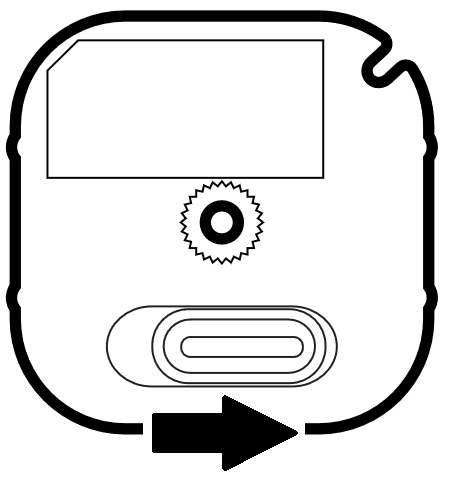
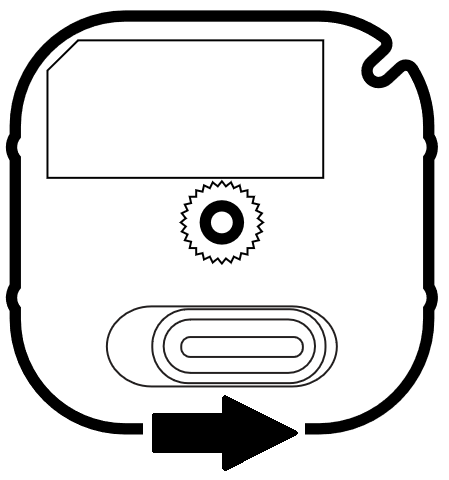
1. Remove the battery cover by sliding the Unlock button LEFT, then pull the cover off.
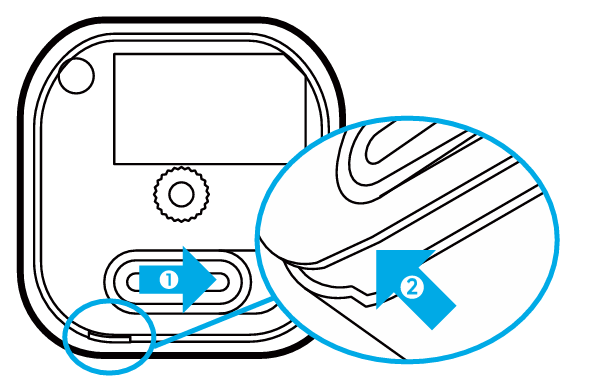
2. Insert the USB-C of the provided USB cable into your sensor's USB-C port.
3. Insert the larger end of the USB-A cable into a computer or any 5V adapter which will immediately power your MultiSensor 8.
4. Make sure to seat the Battery Cover back onto the MultiSensor 8 and lock it in by sliding the Unlock button RIGHT.
For a battery-powered installation (acts as a sleeping device when paired on battery power):
1. Remove the battery cover by sliding the Unlock button LEFT, then pull the cover off.
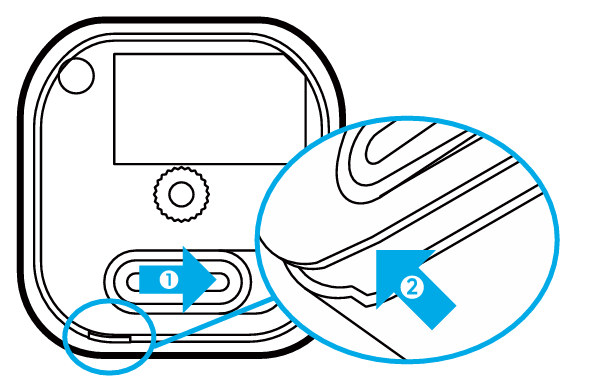
2. Insert two CR123A lithium batteries orientated according to the diagram within your sensor.
Try inserting the batteries flat rather than at an angle.
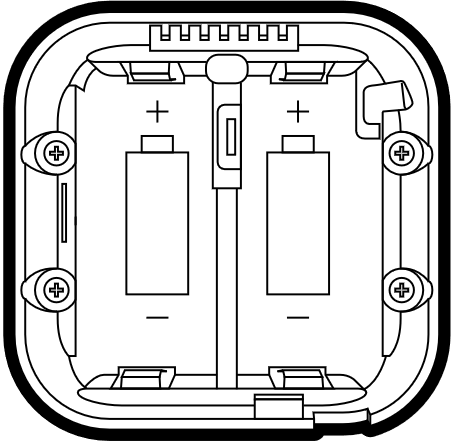
Note: MultiSensor 8 can be powered by a single CR123A (doesn't matter which port), though batteries will require changing more frequently (half the expected battery life).
WARNING: Not compatible with rechargeable CR123A batteries (3.6V).
3. Make sure to seat the Battery Cover back onto the MultiSensor 8 and lock it in by sliding the Unlock button RIGHT.
Connect MultiSensor 8 to a hub.
This section will go over brief steps to connecting MultiSensor 8, for further details on connecting this product to your hub, click on the hub that you have to access more detailed steps.
- Aeotec AutoPilot:
- Open up AutoPilot UI
- Click on "DEVICES"
- Click on "+ Add new"
- Click on "+"
- Click on "+ Add"
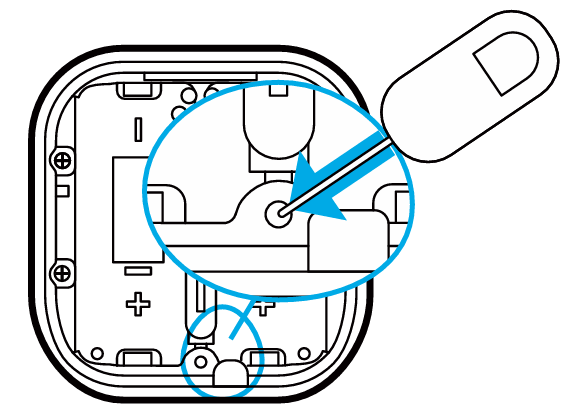
- Now tap the Action Button 2x times quickly within 0.5 seconds (with the SIM needle) on your MultiSensor 8 once.
- Aeotec Smart Home Hub / SmartThings:
- Open SmarThings app.
- Tap + (at the top right corner).
- Tap "Add device" -> "By brand" -> "Aeotec"
- Tap "Multipurpose Sensor" -> MultiSensor 8.
- Tap Start
- Now tap the Action Button 2x times quickly within 0.5 seconds (with the SIM needle) on your MultiSensor 8.
- Scan the QR code, or choose to enter the DSK code.
- If successful, the MultiSensor 8 should appear as an "Aeotec Multipurpose Sensor".
- Home Assistant / Z-WaveJS:
- Open up Home Assistant
- Click on "Configuration" at the bottom left of the page.
- Click on "Integrations".
- Click on "Configure".
- Click on "ADD NODE".
- Click on "START INCLUSION"
- Tap the MultiSensor 8 Action button 2x times quickly within 0.5 seconds (with the SIM needle) to pair it.
- SmartStart QR code scanning:
- If your Z-Wave gateway supports SmartStart, you can scan the QR code on the MultiSensor 8 to automatically pair the sensor if your Z-Wave hub supports this.
- After scanning, power up the MultiSensor 8 with your desired power source.
- For most other hubs:
- Set your Z-Wave hub to connect new Z-Wave devices.
- Tap the MultiSensor 8 Action button 2x times quickly within 0.5 seconds (with the SIM needle).
- If prompted, scan the QR code or enter the 5 digit DSK code.
Advanced Functions.
Placement Considerations.
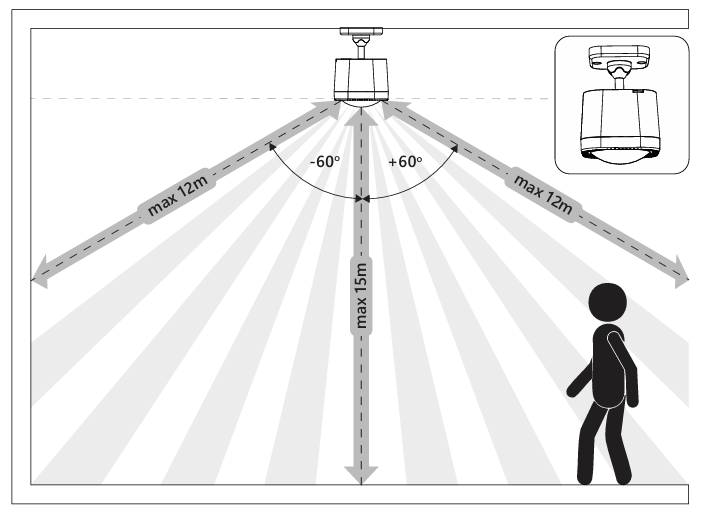
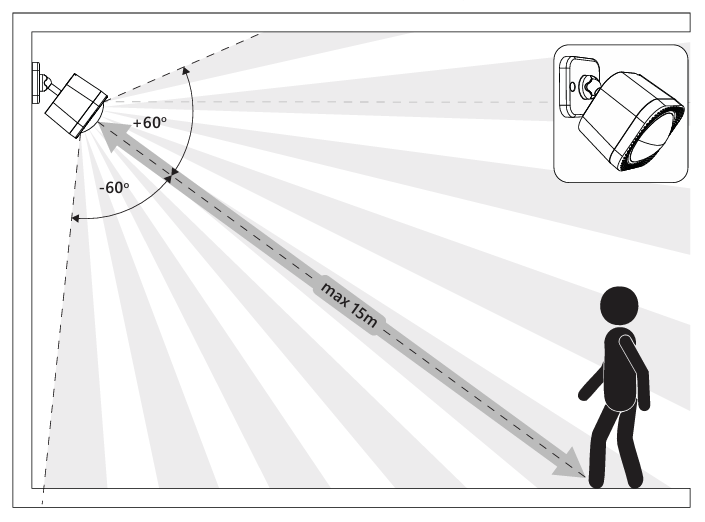
There are some placement considerations when using the Multisensor 8 as a motion sensor. Above are some diagrams that show the distance at which the wall or ceiling installations can perform based on the height they are installed at and at the angle.
Z-Wave Resetting MultiSensor 8.
Your MultiSensor can be removed from your Z-Wave network at any time. You'll need to use your Z-Wave network's main controller to do this and the following instructions tell you how to do this. If you are using other products as your main Z-Wave controller, please refer to the part of their respective manuals that tells you how to remove devices from your network.
Using an existing gateway:
You may need to refer to your gateway's method of including devices if you do not know how to pair a Z-Wave device. You may use any gateway to perform an unpair/removal on MultiSensor 7 even if they are not paired together to factory reset MultiSensor 8.
1. Set your Z-Wave gateway into Z-Wave unpair (exclusion) mode.
2. Tap the action button 2x times quickly within 0.5 seconds (with the SIM needle); the Green led will blink up to 30 seconds while it is trying to remove itself from the network.
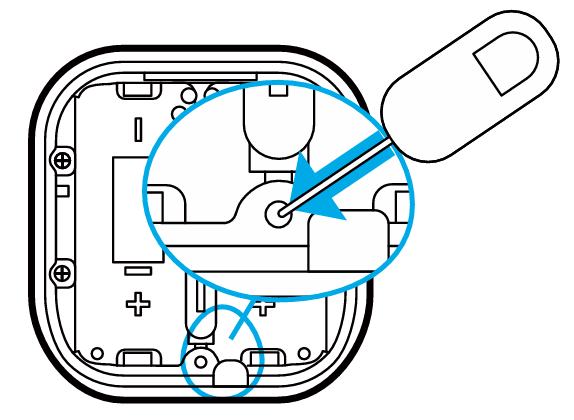
3. If removed successfully, the Green led will breathe in and out 3x times to indicate it is ready to be paired to a new hub.
Manual Hard Resetting MultiSensor 8.
1. Make sure the device has been powered.
2. Press and hold the button for 12+ seconds (with the SIM needle). When the green led flashes, the device will enter the factory reset mode.
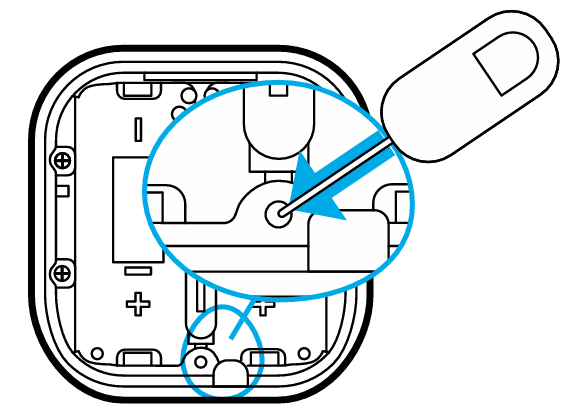
3. If reset successful, the Green LED will remain solid ON for 1 second then start breathing Green for 3 times to indicate it has been factory reset.
In order to configure Multisensor 8, you must either (1) wake up Multisensor 8 using the below button press function, or (2) temporarily put your Multisensor 8 on USB power.
This section will go over the manual wakeup of this sensor in case you don't want to wait for configuration.
Quick Wakeup.
1. Tap the Multisensor 8 Action button once (with the SIM needle)
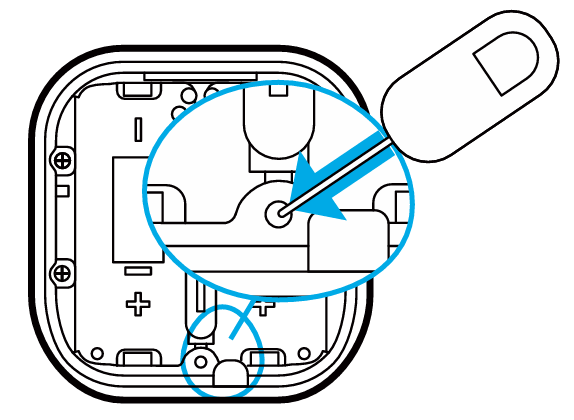
2. The LED turns into a solid Green Color (1 second)
This will keep the sensor awake for 15 seconds unless the controller sends a NO MORE INFORMATION frame to the MultiSensor 8.
Association Groups.
Group Association is a specific function in Z-Wave that allows you to tell MultiSensor 8 who it can speak to. Some devices may only have 1 group association meant for the gateway, or multiple group associations that can be used for specific events. This type of function isn't used too often, but when it is available, you may be able to use it to directly communicate to Z-Wave devices instead of controlling a scene within a gateway which can have unforeseen delays.
Some gateways have the ability to set Group Associations to devices that have these special events and functions. Typically this is used to allow your gateway to update the status of MultiSensor 8 instantly.
By default, your primary gateway should have been associated with MultiSensor 8 automatically during the pairing of your Siren. For any case you have a Secondary Z-Wave Controller, you'll need to associate it to your MultiSensor 8 in order for your secondary controller to update its status.
| Group ID | Name | Nodes | Profile | Function |
| 1 | Lifeline | 5 | General: Lifeline (0x0001) | Device Reset Locally Notification: Issued when Factory Reset is performed. Battery Report: Issued when battery becomes low. Sensor Binary Report: See Param 1 for more info. Notification Report: See Notification Chapter. Multilevel Sensor Report: Issued when timed, threshold, or limit report. Configuration Report: Issued when Param 13 changes. |
| 2 | Motion | 5 | Notification: Home Security (0x7107) | Basic Set: Control devices when motion is triggered or untriggered. |
| 3 | Over Heat | 5 | Sensor: Temperature (0x3101) | Basic Set: Issued when the temperature detected is higher than the value set by Configuration Parameter 14. |
| 4 | Under Heat | 5 | Sensor: Temperature (0x3101) | Basic Set: Issued when the temperature detected is lower than the value set by Configuration Parameter 15. |
| 5 | Over Humidity | 5 | Sensor: Humidity (0x3105) | Basic Set: Issued when the humidity detected is higher than the value set by Configuration Parameter 16. |
| 6 | Under Humidity | 5 | Sensor: Humidity (0x3105) | Basic Set: Issued when the humidity detected is lower than the value set by Configuration Parameter 16 (Note: Configuration section refers to Param 17 for this threshold). |
| 7 | Over Light | 5 | Sensor: Illuminance (0x3103) | Basic Set: Issued when the Light detected is higher than the value set by Configuration Parameter 18. |
| 8 | Under Light | 5 | Sensor: Illuminance (0x3103) | Basic Set: Issued when the Light detected is lower than the value set by Configuration Parameter 19. |
| 9 | Mold Danger | 5 | Notification: Weather Alarm (0x7110) | Basic Set: Control devices when Mold Danger is detected. |
| 10 | Temperature | 5 | Sensor: Temperature (0x3101) | Multilevel Sensor Report: Issued when timed report or threshold report occurs. |
| 11 | Tamper | 5 | Notification: Home Security (0x7107) | Basic Set: Control devices when tamper is triggered or untriggered. |
There are further advanced parameter settings which you can completely customize how your MultiSensor 8 reports to conserve battery power, or even set near real time reports. Refer to the table below for the possible configurations available for this sensor.
In order to configure Parameter Settings, the Z-Wave Controller linked to the MultiSensor 8 must support the configuration command class functions.
| Parameter # | Byte Size | Description | Settings / Values | Value Description |
| 0x01 (1) | 1 | Enable Binary Sensor Report (Motion) | 0 1 | 0: Disable 1: Enable (Sends Sensor Binary Report) |
| 0x02 (2) | 2 | Motion Retrigger Time | 0 1-3600 | 0: Disable (Hardware determines re-triggering) 1-30: 30 seconds 30-3600: Timeout set in seconds |
| 0x03 (3) | 2 | Motion Untrigger Time | 0 1-3600 | 0: Disable 1-30: 30 seconds 30-3600: Timeout set in seconds (Delay before sending no-trigger status) |
| 0x04 (4) | 1 | Motion sensitivity | 0 1 - 11 | 0: Disable 1: Minimum Sensitivity 11: Maximum Sensitivity |
| 0x05 (5) | 2 | Motion Group Control Requirement (Lux Threshold) | 0 - 30000 | Set threshold of Light/Lux. Associated devices in Group 2 only receive BASIC_SET when light <= this value. |
| 0x06 (6) | 1 | Tamper Report Enable/Disable | 0 1-254 255 | 0: Disable tamper 1-254: Timeout in minutes to reset tamper status 255: Only send tamper triggered (no timeout) |
| 0x07 (7) | 1 | Minimum acceleration change to report | 0 1-255 | 0: Disable 1-30: 30 m/s^2 30-255: 30~255 m/s^2 |
| 0x08 (8) | 1 | Motion Group Control Group 2 | 0 - 6 | 0: Trigger=Basic Set(0xFF), Untrigger=Basic Set(0x00) 1: Trigger=Basic Set(0x00), Untrigger=Basic Set(0xFF) 2: Trigger=Basic Set(0xFF), Untrigger=Nothing 3: Trigger=Basic Set(0x00), Untrigger=Nothing 4: Trigger=Nothing, Untrigger=Basic Set(0x00) 5: Trigger=Nothing, Untrigger=Basic Set(0xFF) 6: Trigger=Custom(Param 9), Untrigger=Custom(Param 9) |
| 0x09 (9) | 2 | Motion Group Value Setting | 0 - 0xFFFF | High Byte = Trigger Value; Low Byte = Untrigger Value (e.g., 0x0A00 sends 0x0A on trigger, 0x00 on untrigger) |
| 0x0A (10) | 1 | Temperature & Dew Point Scale | 0 1 | 0: Celsius 1: Fahrenheit |
| 0x0B (11) | 2 | Threshold Check Time | 0 1 - 65535 | 0: Disable 1-65535: Seconds per check for Params 14-25 (Minimum 30s for battery power) |
| 0x0C (12) | 1 | Sensor threshold control (Bitmask) | 0 - 0x77 | Enable/Disable measurement reports for sensors exceeding limits. Bit 0: Temp upper Bit 1: Humidity upper Bit 2: Lux upper Bit 4: Temp lower Bit 5: Humidity lower Bit 6: Lux lower |
| 0x0D (13) | 1 | Out-of-threshold State (Read Only) | 0 - 0x77 | Read-only bitmask indicating current out-of-limit state of sensors. 0: Within limit 1: Out of limit (Bits correspond to Param 12) |
| 0x0E (14) | 2 | Over Heat Group Threshold (Group 3) | -400 to 1850 | 0: Disable EU/AU: 400~850 (-40°C~85°C) US: -400~1850 (-40°F~185°F). Triggers BASIC_SET(0xFF) if measured Temperature >= set value. Triggers BASIC_SET(0x00) if measured Temperature < set value. |
| 0x0F (15) | 2 | Under Heat Group Threshold (Group 4) | -400 to 1850 | 0: Disable EU/AU: 400~850 (-40°C~85°C) US: -400~1850 (-40°F~185°F). Triggers BASIC_SET(0xFF) if measured Temperature <= set value. Triggers BASIC_SET(0x00) if measured Temperature < set value. |
| 0x10 (16) | 1 | Over Humidity Group Threshold (Group 5) | 0 1 - 100 | 0: Disable 1-100: 1% - 100%. Triggers BASIC_SET(0xFF) if measured humidity >= set value. Triggers BASIC_SET(0x00) if measured humidity < set value. |
| 0x11 (17) | 1 | Under Humidity Group Threshold (Group 6) | 0 1 - 100 | 0: Disable 1-100: 1% - 100%. Triggers BASIC_SET(0xFF) if measured humidity <= value. Triggers BASIC_SET(0x00) if measured humidity > set value. |
| 0x12 (18) | 2 | Over Light Group Threshold (Group 7) | 0 1 - 30000 | 0: Disable 1-30000: Lux. Triggers BASIC_SET(0xFF) if measured light >= set value. Triggers BASIC_SET(0x00) if measured light < set value. |
| 0x13 (19) | 2 | Under Light Group Threshold (Group 8) | 0 1 - 30000 | 0: Disable 1-30000: Lux. Triggers BASIC_SET(0xFF) if measured light <= set value. Triggers BASIC_SET(0x00) if measured light > set value. |
| 0x14 (20) | 1 | Temperature Recover Limit | 1 - 255 | Sets recovery hysteresis (scaled by 0.1). Report sent if measurement returns within (Limit ± Recover Limit). |
| 0x15 (21) | 1 | Humidity Recover Limit | 1 - 50 | Sets humidity recovery limit (%). |
| 0x16 (22) | 1 | Lux Recover Limit | 1 - 255 | Sets lux recovery limit. |
| 0x17 (23) | 1 | Temperature Threshold (Report) | 0 1 - 255 | 0: Disable 1-255: 0.1~25.5 degrees. Report sent if change > threshold. |
| 0x18 (24) | 1 | Humidity Threshold (Report) | 0 1 - 50 | 0: Disable 1-50: 1-50%. Report sent if change > threshold. |
| 0x19 (25) | 2 | Lux Threshold (Report) | 0 1 - 10000 | 0: Disable 1-10000: Lux. Report sent if change > threshold. |
| 0x1A (26) | 1 | Low battery threshold | 0 10 - 90 | 0: Disable 10-90: 10% - 90%. Sends notification/report when battery drops below this level. |
| 0x1B (27) | 2 | Temperature Offset Value | -200 to 200 | Calibration offset. Scale defined by Param 10 (e.g., 15 = 1.5°). |
| 0x1C (28) | 1 | Humidity Offset Value | -50 to 50 | Calibration offset in %. |
| 0x1D (29) | 2 | Lux Offset Value | -10000 to 10000 | Calibration offset in Lux. |
| 0x1E (30) | 1 | Mold Danger Offset Value | -10 to 10 | Adjusts humidity threshold for mold danger. 0: Humidity >= 90% triggers danger 10: Humidity >= 40% triggers danger |
| 0x1F (31) | 4 | Report Indicator (LED Color) | 0 - 0x09999999 | Sets LED color for specific events (Motion, Wakeup, Tamper, etc.).
Values: 0:Disabled, 1:Red, 2:Green, 3:Blue, 4:Yellow, 5:White, 6:Purple, 7:Orange, 8:Pink, 9:Cyan. Bits: 0-3 (Periodic), 4-7 (Wake up), 8-11 (Mold), 12-15 (Motion), 16-19 (Tamper), 20-23 (Accel), 24-27 (Threshold), 28-31 (Enable/Disable LED) |
| 0x20 (32) | 1 | Automatic Report Checklist 1 | 0 - 0x1F | Bitmask for items to report at Interval 1 (Param 34). Bit 0: Temperature Bit 1: Humidity Bit 2: Lux Bit 3: Dewpoint Bit 4: Battery |
| 0x21 (33) | 1 | Automatic Report Checklist 2 | 0 - 0x1F | Bitmask for items to report at Interval 2 (Param 35). Bit 0: Temperature Bit 1: Humidity Bit 2: Lux Bit 3: Dewpoint Bit 4: Battery |
| 0x22 (34) | 2 | Automatic Checklist 1 Interval Time | 0 1 - 65535 | 0: Disable 1-65535: Seconds. (Min 30s). Interval for Checklist 1. |
| 0x23 (35) | 2 | Automatic Checklist 2 Interval Time | 0 1 - 65535 | 0: Disable 1-65535: Seconds. (Min 30s). Interval for Checklist 2 |