This article describes the setup of the Z-Stick 10 Pro in Home Assistant using ZWaveJS to MQTT; it forms part of the larger Z-Stick 10 Pro user guide. Setting up Home Assistant with Z-Stick 10 Pro lets you build a Z-Wave automation network utilizing Z-Wave 800 series / Gen8 technologies.
Requirements.
- Home Assistant OS: https://www.home-assistant.io/installation/
- Z-Stick 10 Pro
If using Windows, follow the steps here to get a Virtual Machine running Home Assistant OS: Setup Home Assistant in Windows
If you're installing Z-Wave JS to MQTT on a fresh installation (Updated 1/16/25).
These steps assume that you have a fresh install of Home Assistant and have not yet installed Z-WaveJS UI. Make sure to delete ZWaveJS integration and follow the steps below.
If you have a fresh install, you may follow the steps below to fully install Z-Wave JS UI.
- Open Home Assistant, http://homeassistant.local:8123/
- Click Setting -> Add-on

- Click on "Add-on store" at the bottom right
- Search for "ZWave"

- Click Z-Wave JS UI
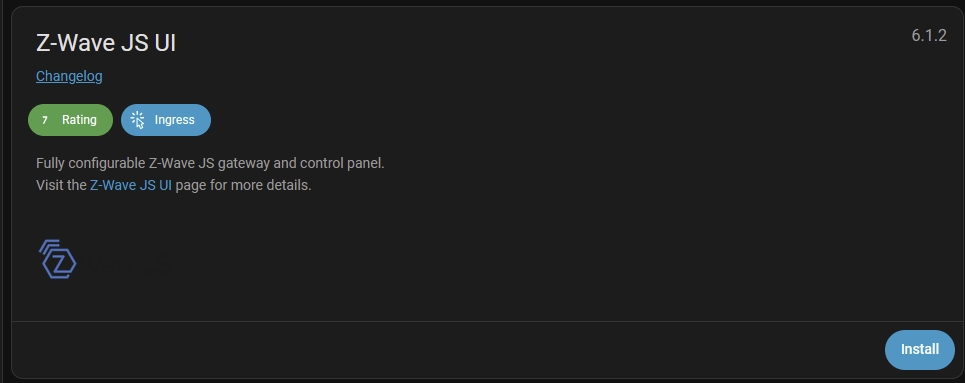
- Click Install, then wait for the installation to finish.
- Click Start.
- Wait 1 minute for HASS to boot up Z-Wave JS UI completely (grab some coffee or some water while you wait).
- Click "Open Web UI"

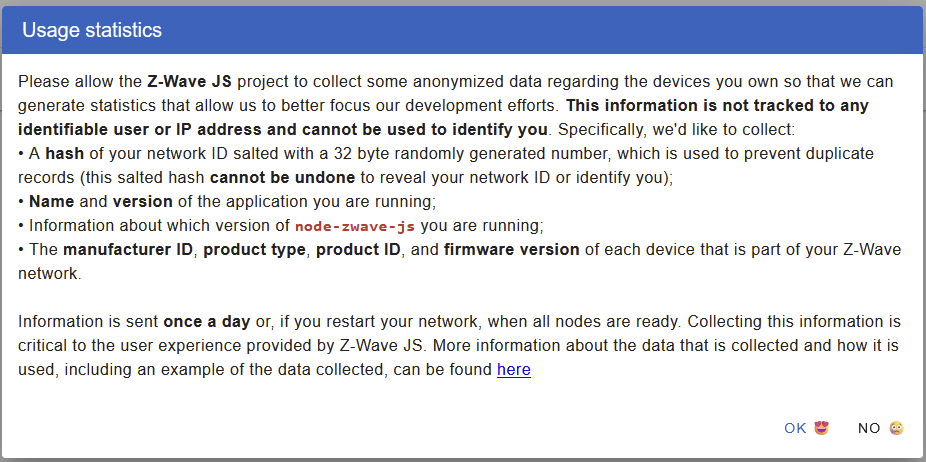
- A Usage Statistic message will appear, if you want to help out the ZWaveJS team, please answer OK, otherwise just click on NO if you don't want to send your own information/statistics.
- Click Menu (hamburger icon) -> Settings

- Click Z-Wave to expand the options
- Click Serial port and select /dev/serial/by-id/usb-Silicon_Labs_CP2105_Dual_USB_to_UART_Bridge_Controller_00F4C829-if01-port0 (In some Z-Stick 10 Pro, it may be if00-port0 instead, it doesn't hurt to try the other if your first selection doesn't work).
You may also use /dev/ttyUSB1 (assuming this is the only USB Serial adapter you have plugged in).
(The other port is for Zigbee)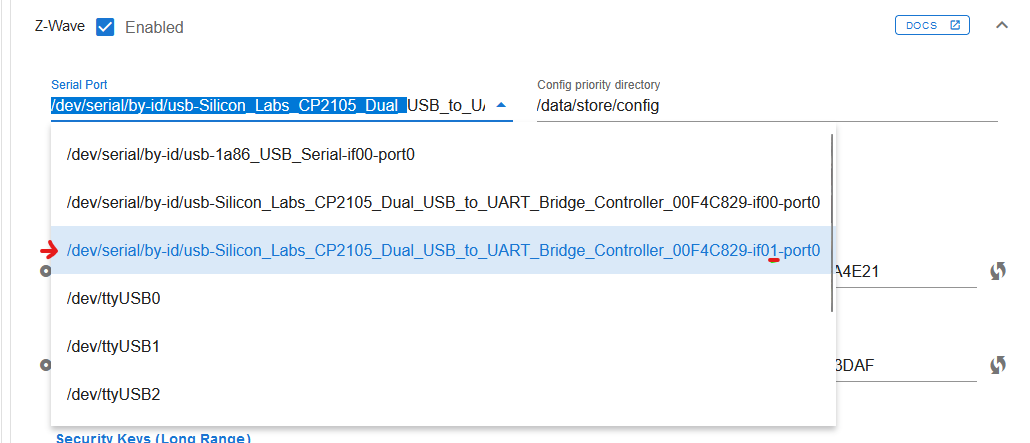
- Under Security Keys, click the refresh button to add a random security key for S0 Legacy, S2 Authenticated, S2 Unauthenticated, and S2 Access control.
Do the same for the Security Keys (Long Range) as well.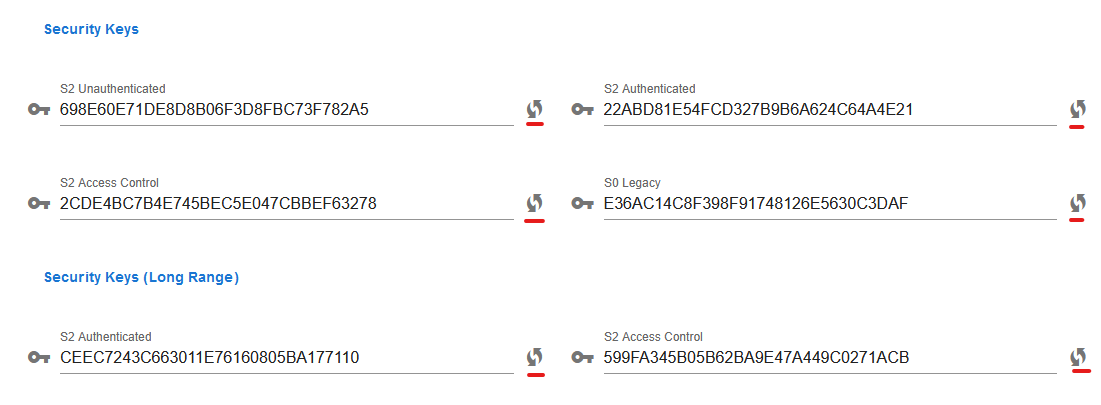
- Set your "RF Region" and "Measured output power at 0dBm" under Default Radio Configuration to the correct Z-Wave Region you are located in.
Model # ZWA010-A uses USA
Model # ZWA010-B uses Australia/New Zealand
Model # ZWA010-C uses Europe
For all regions use "Measured output power at 0dBm" = 0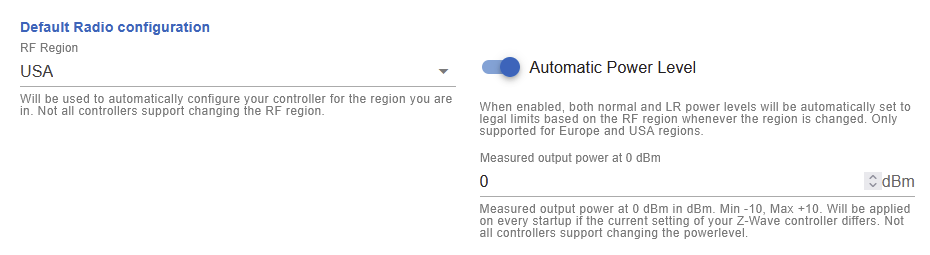
- Click Save

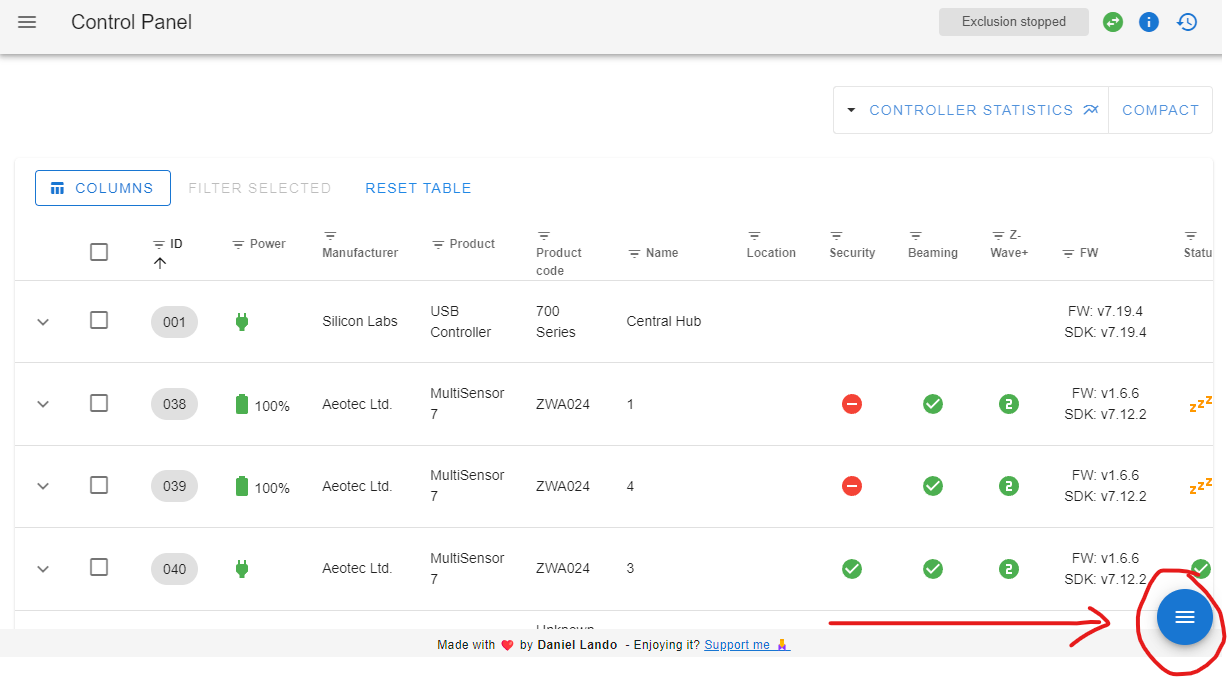
- Click Menu (hamburger icon) -> Control Panel
If your Z-Stick 10 Pro Z-Wave adapter successfully connected, you should see it as ID 001 which indicates that the Z-Stick 10 Pro is connected. This should appear pretty immediately after you reboot your ZWaveJS UI interface.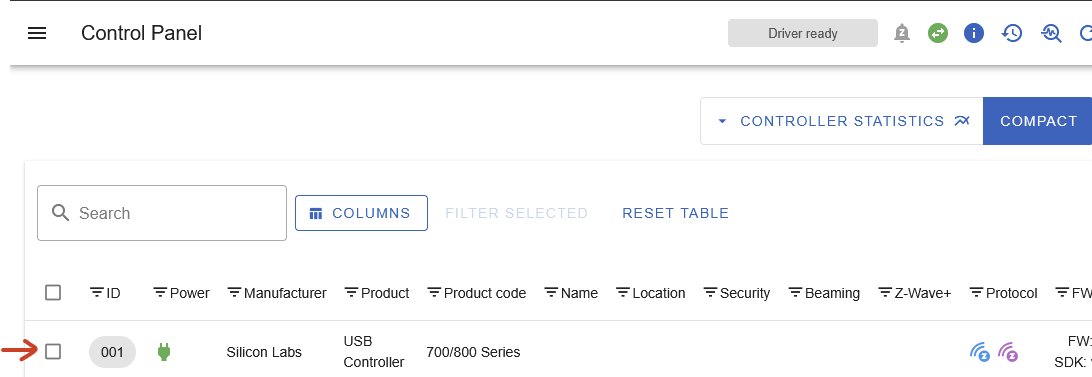
Now if it it failed, no controller will appear, go back to step 13 and try the other port of the Z-Stick 10 Pro. - Click Settings -> Devices & Services

- Click + Add Integrations

- Search ZWave
- Click Z-Wave
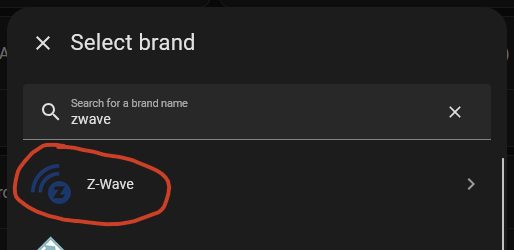
- Click Z-Wave again
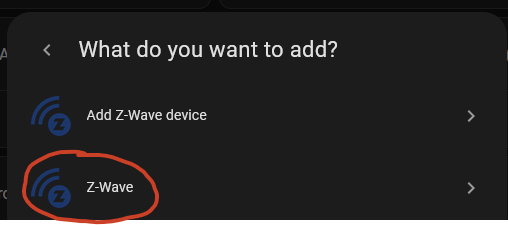
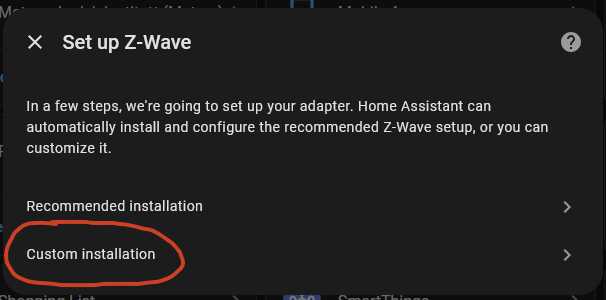
- Click Custom Installation
- Uncheck "Use the Z-Wave JS Supervisor add-on"
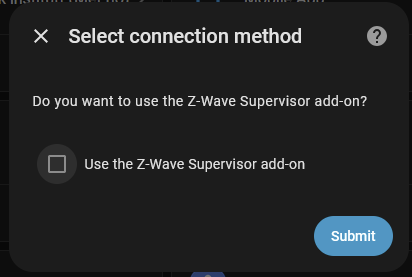
- Click Submit
- Copy and Paste "ws://a0d7b954-zwavejs2mqtt:3000" into the URL* section.
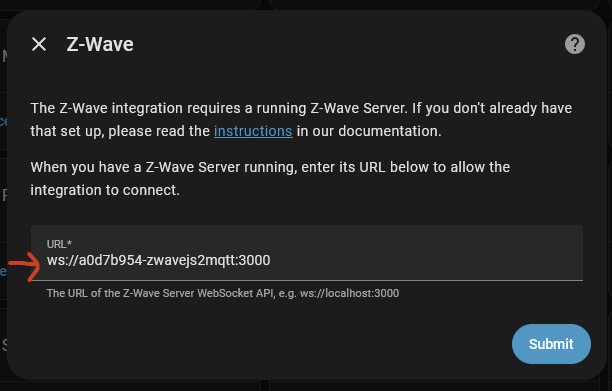
- Click Submit
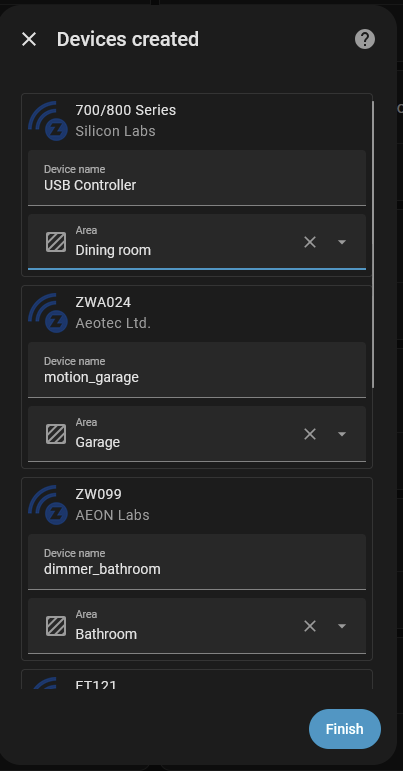
- Set your devices to the areas they are installed in, then click Finish (if you had any devices paired through ZWaveJS UI, those devices should appear under your "USB Controller").
Pairing your first Z-Wave device.