
In order to update the Z-Stick 10 Pro, this actually uses the standard library for Z-Wave. Downloading PC Controller 5 should give you all of the latest firmware updates but it's buried way inside the installed folders for Z-Wave SDK files.
Alternatively, you can use ZWaveJS UI to perform the firmware update.
Requirements:
- Z-Stick 10 Pro
There are two known methods published in this article which can be found below to firmware update either using PC Controller 5 via Windows or through ZWaveJS UI via Home Assistant OS (or could be through docker or portainer as well).
Method 1 - Update using ZWaveJS UI.
Z-Stick 10 Pro firmware update is a part of the ZWaveJS firmware updater database, while it should appear automatically, you could push the update manually using ZWaveJS UI following the steps below.
- Setup ZWaveJS UI in your Home Assistant setup: Setup ZWaveJS UI
- Download the update file 7.23.2 here and place it into a folder that can easily be found:
- Open ZWaveJS UI interface
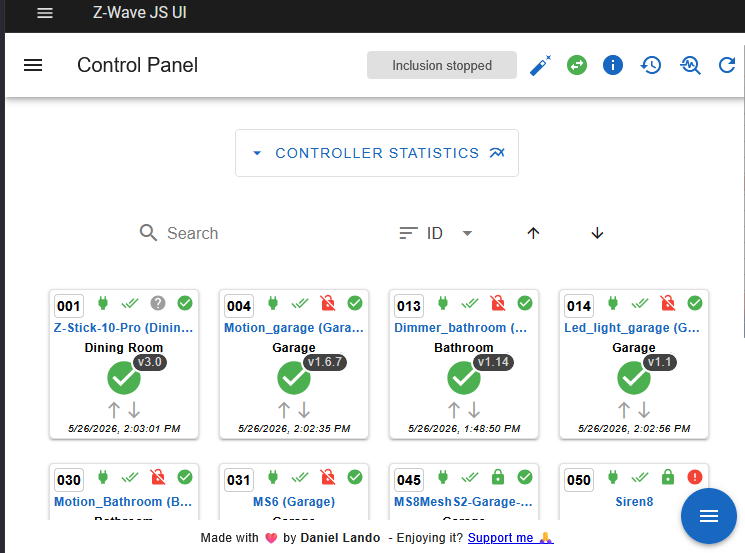
- Click on the blue button icon (bottom right)

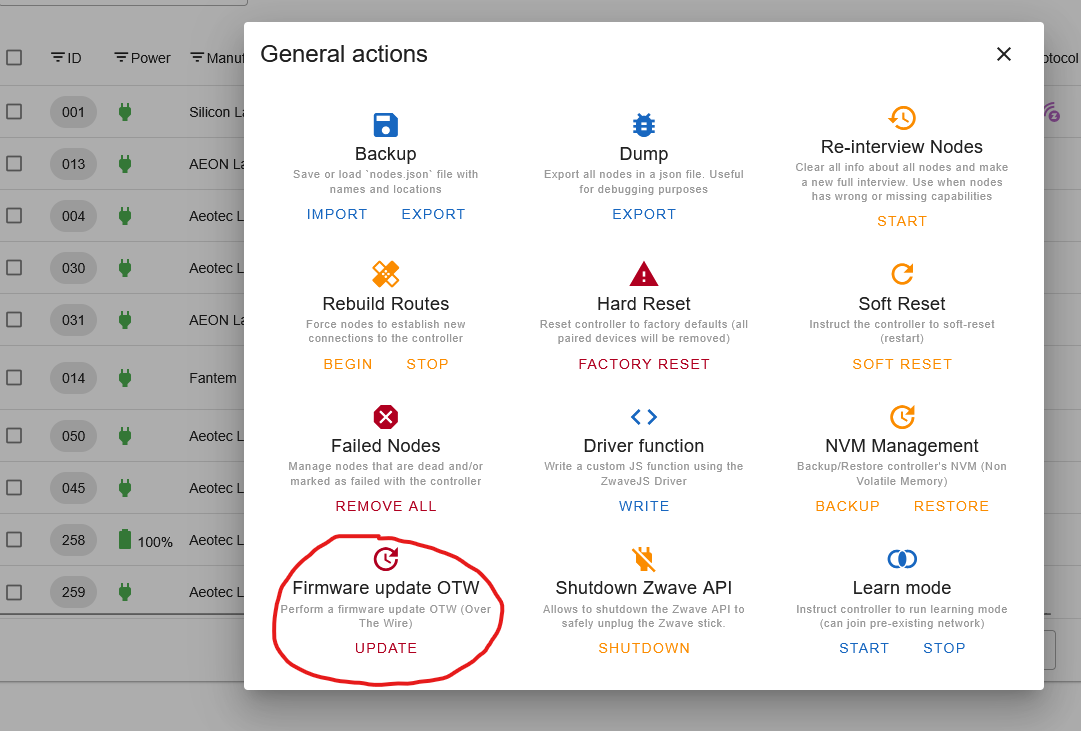
- Click on the purple button icon (popup)

- Click on UPDATE under Firmware Update OTW
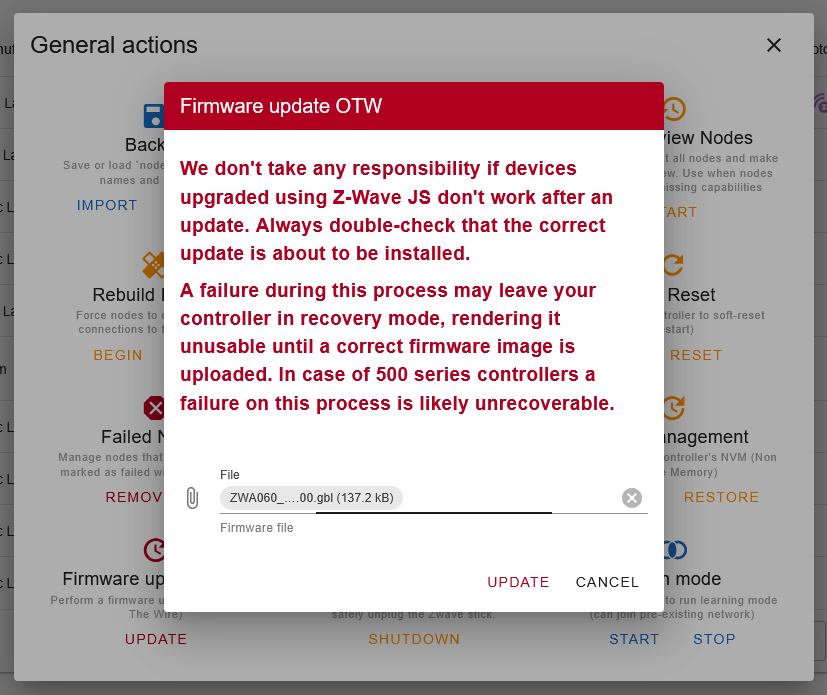
- Then select the firmware update file from your PC that you downloaded in step 2.
Notes - You can also use terminal if you install NodeJS to use the ZWaveJS firmware updater tool as an alternative which can be found in the ZWaveJS github.
Method 2 - Update using Windows and PC Controller 5 via Simplicity Studios.
Download V7.23.2 update

- The Z-Stick 10 Pro Z-Wave port is always the 2nd generated port, while the first is always Zigbee.
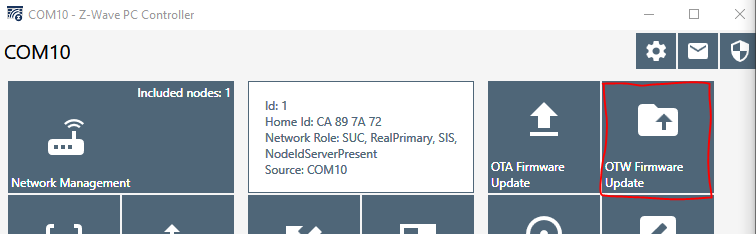
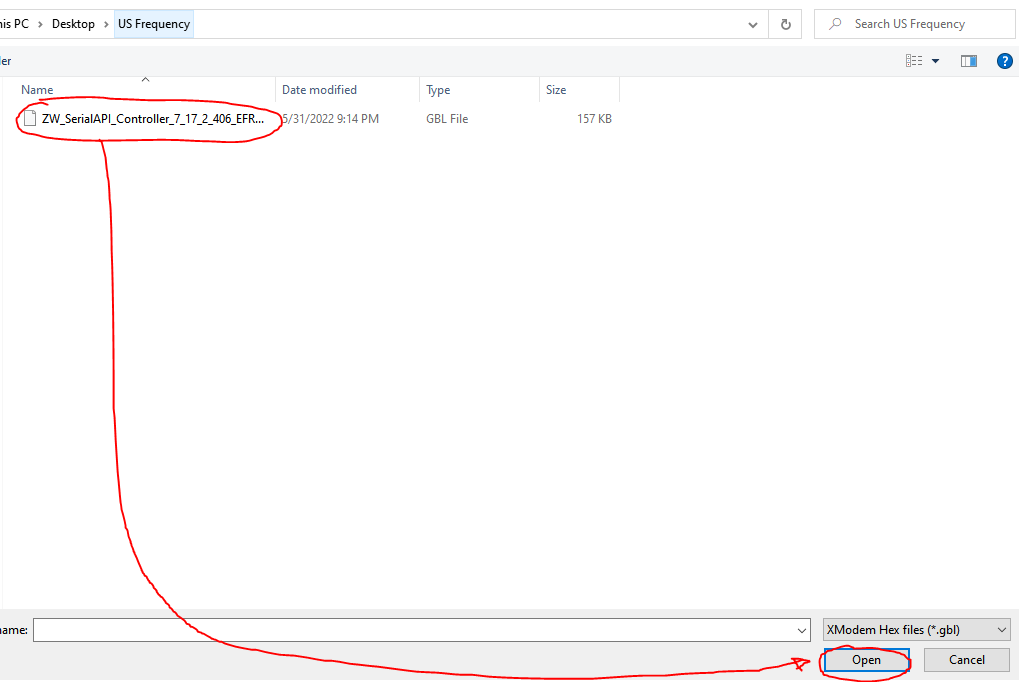
7. It will take about a minute to finish after the firmware update is done.